
Horizon & Sky
Two more ways to look at the same live traffic, from where you stand instead of from above. Horizon is a 3D view over real terrain. Sky is a dome looking straight up. Both are marked Experimental while they settle in.
Switching views
Use the Map, Horizon and Sky buttons on the screen (they can be hidden with Show view buttons in Settings). You can also open them from an airport card with Show horizon or Show sky, which looks from that airport, and from a shared link.
Your viewpoint is the centre of the map at the moment you switch, and it stays put: the view does not follow your location as you move. Press Home to jump to where you are, or search for a place and select it. In both views the address carries the viewpoint, so a refresh, a bookmark or a shared link opens at the same spot, and switching between Horizon and Sky keeps your place.
Horizon
Horizon is a first-person view over terrain built from real elevation data. Aircraft, vessels and satellites appear where they truly are in the sky and on the water, drawn as 3D models with realistic proportions for their type, lit by the real sun and, at night, by their own lights.
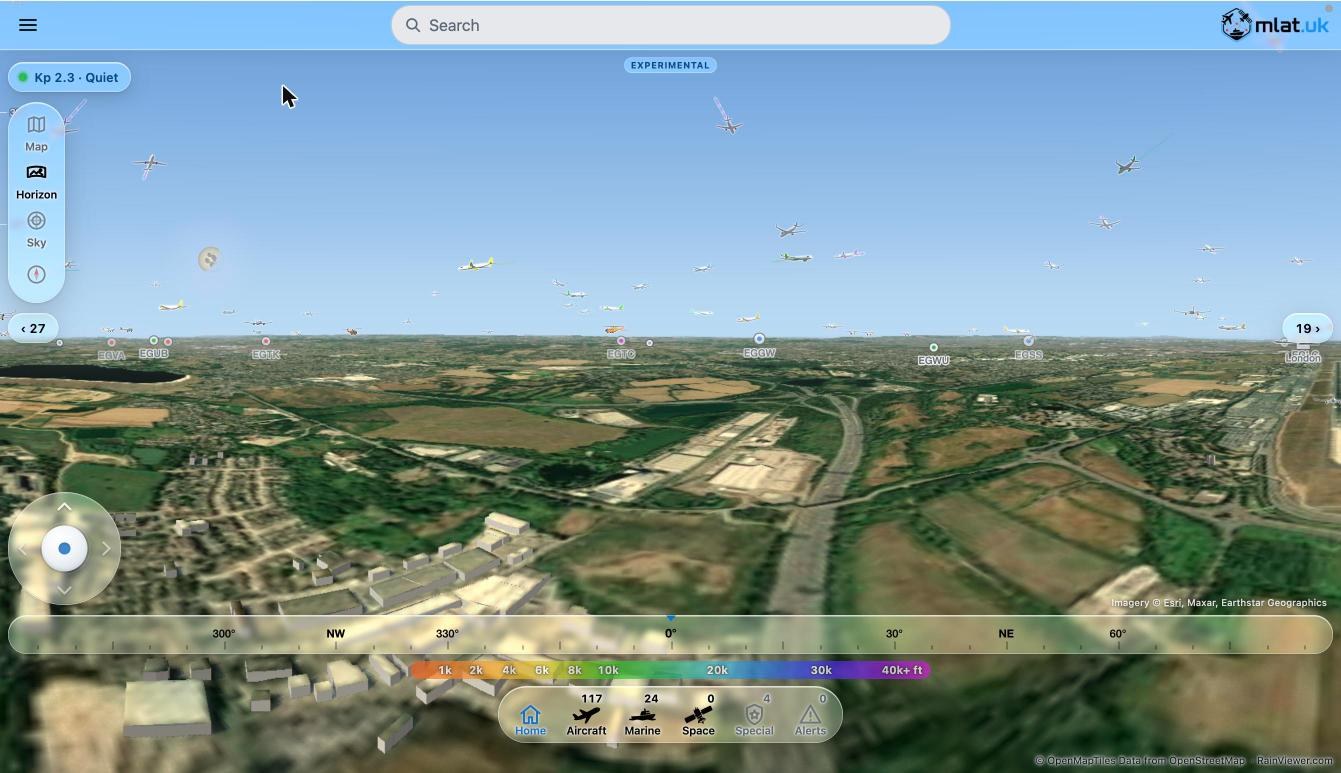
- Hidden when they should be. An aircraft behind a hill, or below the curve of the earth, is left out. Vessels stay in view right down to the water.
- Vessels on the water. Moving vessels leave a wake behind them: a churned centre line with spreading arms and foam that flows astern faster at higher speeds. Closer vessels are drawn at their real size.
- Airports and ports appear at ground level. Hover over one on a computer for its summary.
- Satellites carry a soft halo so they stand out against the sky.
- Day and night follow the Day / night layer, with the sun and moon drawn in their real positions.
- 3D buildings can be switched on in Settings (off by default).
Sky
Sky is a dome with you at the centre, looking up. It shows the sun, the moon, the planets, stars and satellites above the horizon; aircraft below the horizon are left out. The nearest airport and the nearest port are marked on the rim, so you can find your bearings. Stars appear whenever it is dark, following the Day / night layer.
To name what you see, turn on the Constellations layer for the figures and the Astro labels option for names. Names are kept to the planets, the brightest stars and 19 key constellations, so the chart stays readable.
Controls
| Computer | Phone or tablet | |
|---|---|---|
| Turn and tilt | Drag, or ← → to turn and Page Up Page Down to tilt | Drag with one finger |
| Zoom (Horizon) | + − | Pinch |
| Move (Horizon) | ↑ ↓ or the joystick pad at the bottom left | The joystick pad at the bottom left |
| Select | Click an object | Tap an object |
You can tilt the whole way from looking straight down to straight up. The eye height follows the ground under you, easing smoothly as you move.
What is shown
The filters, the bottom bar and search work as on the map, and the counts in the bar are for what is in range of your viewpoint, whether or not a layer is switched on. Aircraft are shown out to the Horizon & Sky Distance in Settings (50 nautical miles to begin with, up to 200). Items that only make sense on the map, such as Replay, Heatmap and Favourites, and the Wind aloft and Hazards layers, are hidden in these views.
Tip: if Horizon runs slowly on your device, lower the Horizon & Sky Distance in Settings.