mlat.uk
User Guide
Everything the live map can do, from the basics to every setting. Start with the quick reference below, then dive into any topic.
Quick reference
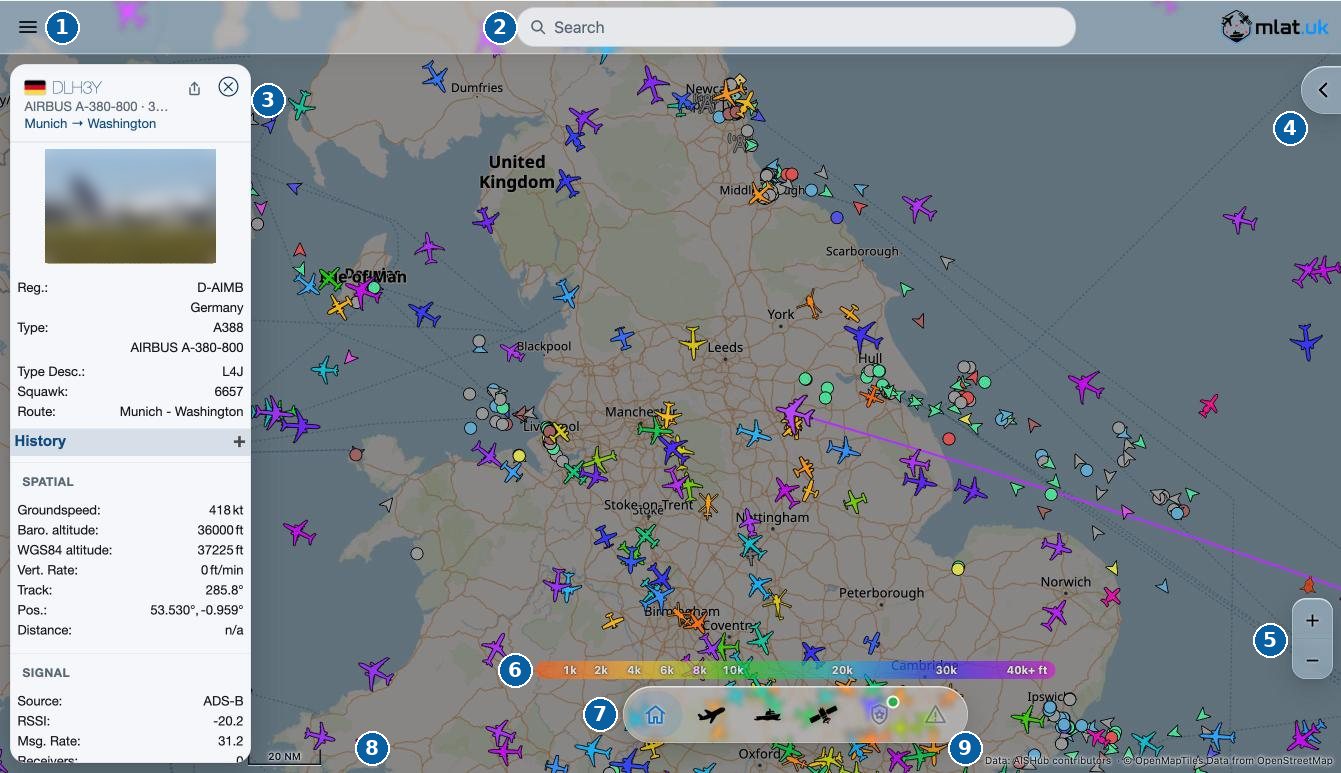
- Menu - share, map options, layers, follow, replay, settings
- Search - anything on the map; long-press or right-click the map for what's nearby
- Details panel - everything about the selected object; share and close at the top
- Object list - open the table of everything in view, with filters and columns
- Zoom - or use the mouse wheel, a pinch or a double-tap
- Altitude key - aircraft colours from the ground to 40,000 ft and above
- Bottom bar - Home, Aircraft, Maritime, Space, Military, Emergency
- Scale - distance on the map at this zoom
- Credits - our data and map providers
Five things to try
- Tap or click any icon to see what it is, where it is going and a photo.
- Type an airport code such as
LHRin search, then choose Show all on the map. - Long-press (or right-click) the map to see what's nearby.
- Turn on Wind or Precipitation under Map layers.
- Use Share this view to send someone exactly what you can see.
Topics
The mapMoving around, the bottom bar, what the icons and colours mean.SearchFind anything on the map, combine terms, pick several results, and search around a point.Objects & the object listThe details panel, following an object, and the object list with its filters and columns.Menu & map optionsEverything in the main menu, and what each map option switches on or off.Map layersWind, rain, day and night, nautical charts, base maps and airspace overlays.SettingsEvery setting explained: appearance, selection & info, labels & altitude, location & sharing.Sharing, replay & the appShare links that open exactly what you see, replay past traffic, and install mlat.uk as an app.Keyboard shortcutsEvery key on one page, for working quickly on a computer.