Select any aircraft, vessel or satellite to see everything known about it. The object list on the right shows everything in view as a table.
Details panel
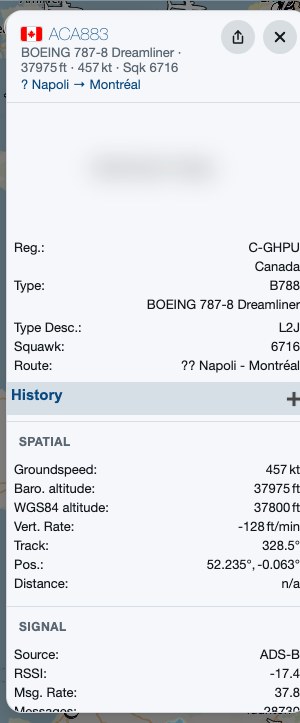
The details panel on a computer (photo blurred here)
On a computer the details open in a card on the left of the map; on a phone they open in a sheet from the bottom. Both show the same information:
Header - flag and name, a one-line summary (type, altitude, speed, squawk), and the route.
Photo - from planespotters.net for aircraft, where one exists, or an outline of the type.
Details - registration, type, operator, squawk, route; for vessels, dimensions, draught, status and ETA; for satellites, orbit and launch details.
Spatial, Signal and further sections - speed, altitudes, track, position, the data source and signal strength.
On a computer, the share icon in the card's header shares a link straight to that object; the × closes it. On a phone, drag the sheet's handle (or tap it) to switch between a small summary, half height and full height.
Selecting an object also draws its recent track on the map. For a satellite you can show the area of the Earth it can see - turn on Satellite footprint in Map options.
Following
Choose Follow selected in the menu (or press f) and the map keeps the selected object in the centre as it moves. Follow a random object (r) picks one for you - a good way to explore. Dragging the map stops following.
Object list
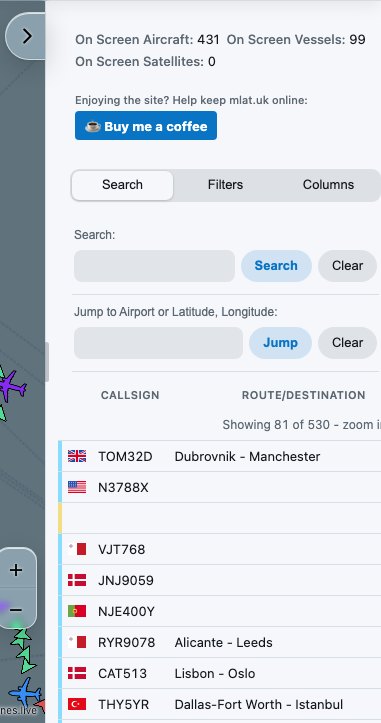
The object list with the Search tab open
Open the list with the tab at the right-hand edge of the map (‹); the same tab (›) closes it. Drag the list's left edge to make it wider or narrower.
At the top are counts of what is on screen and the message rate. Below the tabs is the table: one row per object in view, with a coloured stripe showing its data source. Click a column heading to sort by it, and click a row to select that object. When many objects are in view the table shows the first few dozen - zoom in or filter to see the rest.
Search tab
A simple search that filters the table, plus Jump to, which moves the map to an airport code (EGNT, NCL) or a latitude, longitude. For most searches the main search box at the top is quicker - see Search.
Filters tab
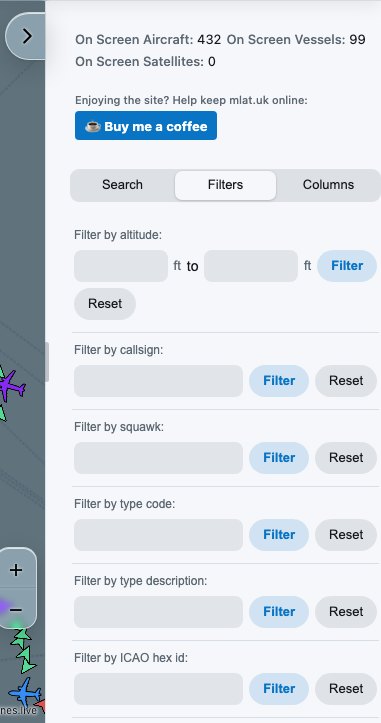
Filters: type a value and choose Filter; Reset removes it
Filters hide everything that doesn't match, on the map and in the table. Each one has its own Filter and Reset buttons, and they can be combined:
Altitude - a range, for example 0 to 5000 ft.
Callsign, squawk, type code, type description, ICAO hex id, registration, route, country of registration and category (A3, B0 and so on).
Source - tap the sources to keep (ADS-B, MLAT, UAT, TIS-B, Mode-S, ADS-C, AIS, Satellite and so on), then Filter.
DB flags - Military, PIA (privacy addresses) and LADD (limited-display aircraft).
Tip: to share a link that keeps your filters, turn on Include Filters In URLs in Settings.
Columns tab
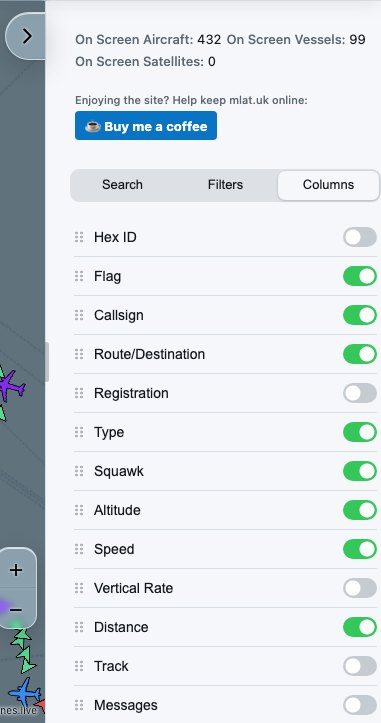
Columns: switch each on or off, drag the grip to reorder
Choose which columns the table shows with the switches, and drag a column by its grip (the dots on the left) to change the order. Your choice is remembered on this device.