The search box at the top searches every object on the map - not just the ones in view - and updates as you type.
Searching
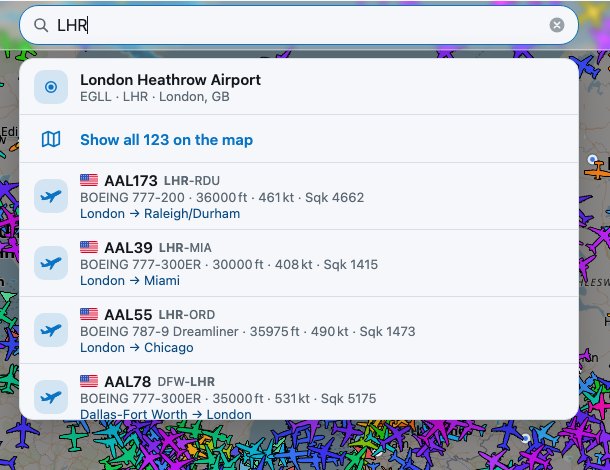
Results for an airport code, with routes shown under each flight
Click the search box (or press /) and type at least two characters. Results appear straight away, five at a time in a scrolling list of up to 100. Each result shows the same summary as the details panel: flag and name, type, altitude, speed and squawk, and the route.
You can search by:
Callsign or name - BAW171, EZY, a vessel's name or callsign.
Registration - G-EZWA, D-AIMB.
ICAO hex or MMSI - 3c65a2, 235012345.
Type - type code (A388) or description (dreamliner, tug).
Country - the two-letter code of an aircraft's country of registration (gb, ie).
Airports and cities on an aircraft's route - see below.
Click or tap a result to select it: the map moves to it and its details open.
Combining terms
A space means and: BAW A35K finds British Airways A350-1000s.
A comma means or: NCL, LBA finds flights to or from Newcastle or Leeds Bradford.
Both together work too: BAW A35K, VIR A35K finds A350-1000s flown by British Airways or Virgin Atlantic.
Airports and routes
Type a three-letter (IATA) or four-letter (ICAO) airport code - LHR or EGLL - to find flights flying to or from it. The search looks up routes as you type, so a few more results can appear a moment later. City names on a route (London, New York) work as well.
Show all on the map
The first row of the results, Show all N on the map, hides everything else and zooms the map to fit every match. You can also just press Enter. An On map tag appears in the search box while this filter is on.
Picking several
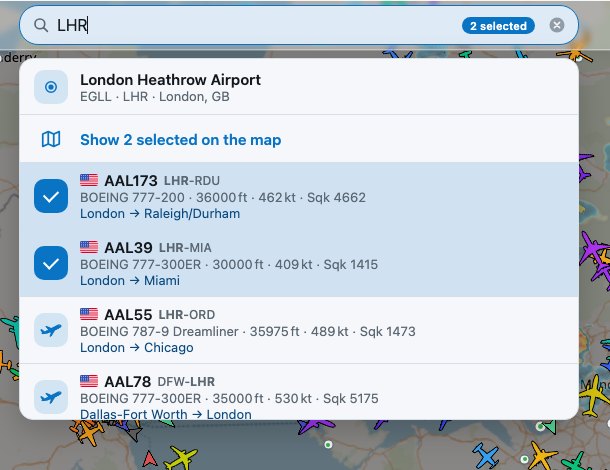
Two results picked: the top row now reads "Show 2 selected on the map"
To narrow the results to a few you care about, long-press a result on a phone or right-click it on a computer. It gets a tick and the map zooms to fit your picks. Pick as many as you like; do it again to remove one.
The top row changes to Show N selected on the map and the box shows an N selected tag. Choose it to hide everything except your picks.
What's nearby
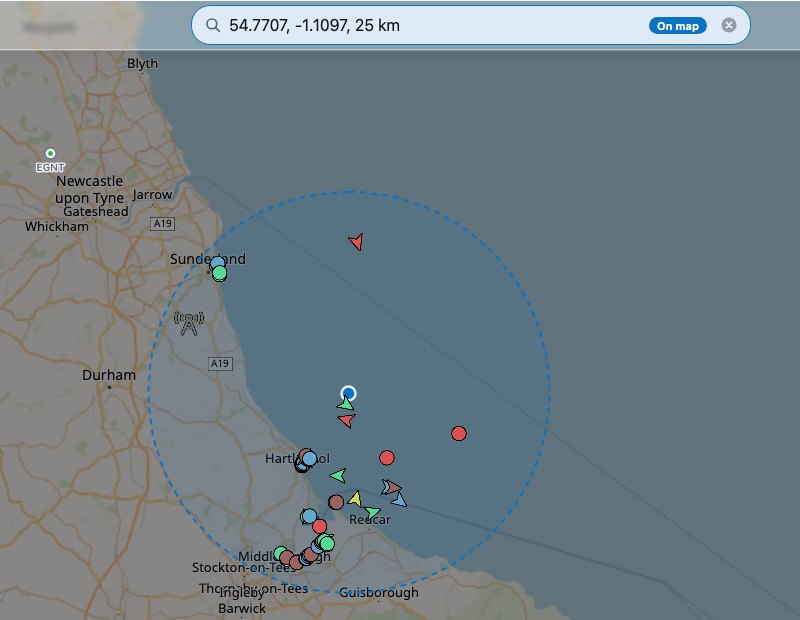
A dropped pin with a 25 km circle: only objects inside it stay on the map
Long-press the map on a phone, or right-click it on a computer, to drop a pin. A circle is drawn around it, the map shows only what is inside, and the search box fills with the point and radius, for example 54.7699, -1.1084, 25 km.
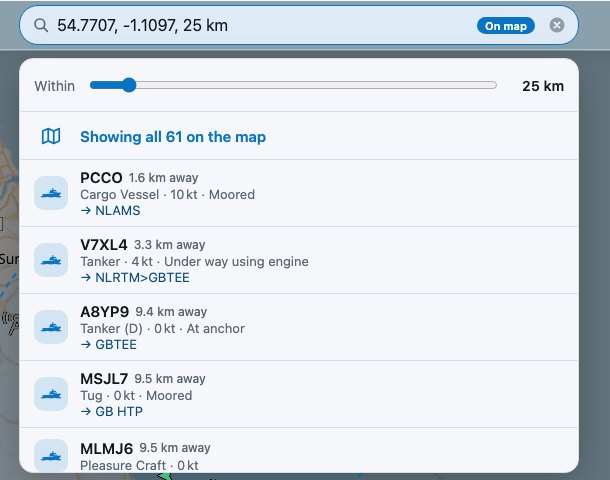
The "Within" slider and the results, nearest first, with their distance
The results list everything inside the circle, nearest first, with its distance. Drag the Within slider to change the radius from 5 km to 250 km. You can also type a point yourself in the same form: latitude, longitude, radius km.
Clearing
Clear the box with its × button, the Cancel button on a phone, or Esc. That removes any map filter, picks and pin, and everything shows again.
Tip: searches are part of the page's link. Share it (see Sharing & links) and the other person sees the same search and filter.