Deselect with the close button on the details, or press Esc.
The map always fills the whole screen. The top bar, the bottom bar and the side panels float over it, so objects stay visible as they pass behind them.
Home
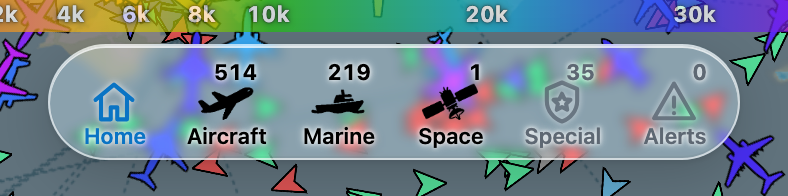
The Home button (the house, left of the bottom bar) brings the map back to your area. If your browser allows location access it centres on you; otherwise it uses the default view. On a phone it centres in the space above the bottom bar, so nothing important sits underneath it.
Bottom bar
Home, Aircraft, Maritime, Space, Military and Emergency
Button
What it does
Home
Returns the map to your area (above).
Aircraft
Shows or hides all aircraft.
Maritime
Shows or hides all vessels and shore stations.
Space
Shows or hides all satellites.
Military
Shows military aircraft only. A green dot means military aircraft are currently in view.
Emergency
Shows aircraft squawking an emergency code only. The dot flashes when one is in view.
An active button is drawn in solid black (white in dark mode); a greyed-out one is off. On a phone the bar moves up above the details sheet when the sheet is minimised.
Icons and colours
Aircraft
Each aircraft is drawn with an outline of its type (airliner, helicopter, light aircraft and so on), coloured by altitude using the key described below.
Vessels
Arrow - a vessel under way, pointing in its direction of travel.
Circle - a vessel that is stationary, moored or at anchor.
Antenna - a shore station (AIS base station, coastguard, aid to navigation).
Vessels are coloured by type (cargo, tanker, passenger, fishing, tug and so on). Zoom right in and larger vessels show their hull outline to scale.
Satellites
Satellites, crewed space stations and military satellites each have their own icon and are coloured by type. They are always drawn above aircraft and vessels.
Altitude key
The colour bar above the bottom bar is the altitude key for aircraft, from orange near the ground through green and blue to purple at 40,000 ft and above. It hides itself when no aircraft are on screen, and can be turned off in Settings (Altitude Chart).
Scale and credits
The scale bar sits at the bottom left. The data and map credits sit at the bottom right; they are required by our data and map providers and link to their sites.
Light and dark
The map follows your device's light or dark appearance automatically. To choose one yourself, turn off Match System Appearance in Settings and switch Dark Mode on or off.